Projects and workspaces
A project holds a model and everything built on it. You don't change a project directly: you change it in a workspace, a copy of the project kept as a branch of its GitLab repository. When your changes are reviewed and approved, they are committed to the project.
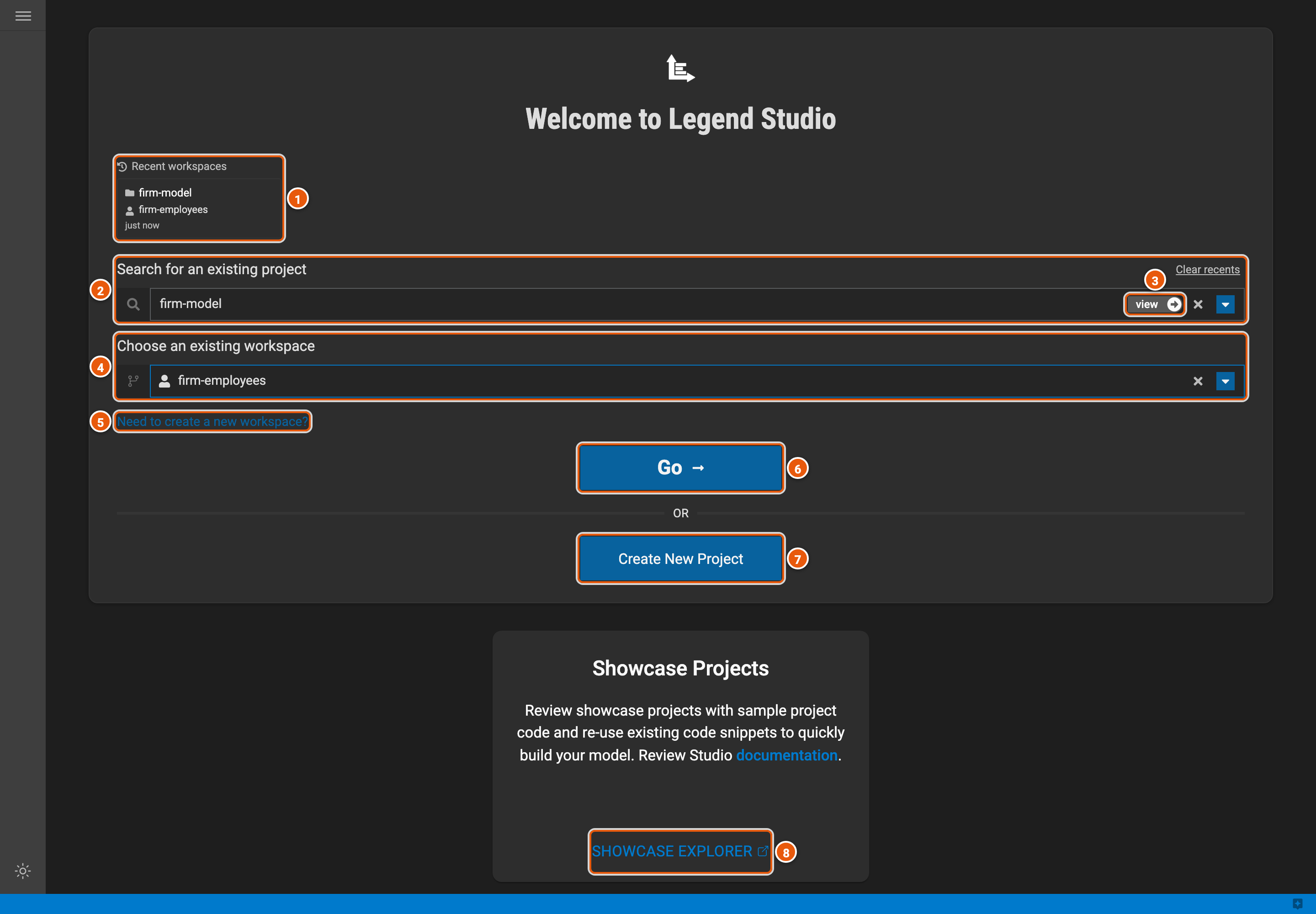
Legend Studio opens on its start screen, where you pick a project and one of its workspaces.
Click the image to see it full size.
- Recent workspaces: the workspaces you opened last. Click one to open it again. Clear recents, above the project search, empties the list.
- Search for an existing project: type part of a project's name, then pick the project from the list.
- view: opens the project read-only, without a workspace.
- Choose an existing workspace: your workspaces in the project, and its group workspaces, which everyone in the project shares.
- Need to create a new workspace?: creates a workspace in the project (see below).
- Go: opens the workspace in the editor.
- Create New Project: creates a project.
- Showcase explorer: small working projects, one for each Legend feature, to read and copy from.
Create a workspace
Pick the project, then click Need to create a new workspace?.
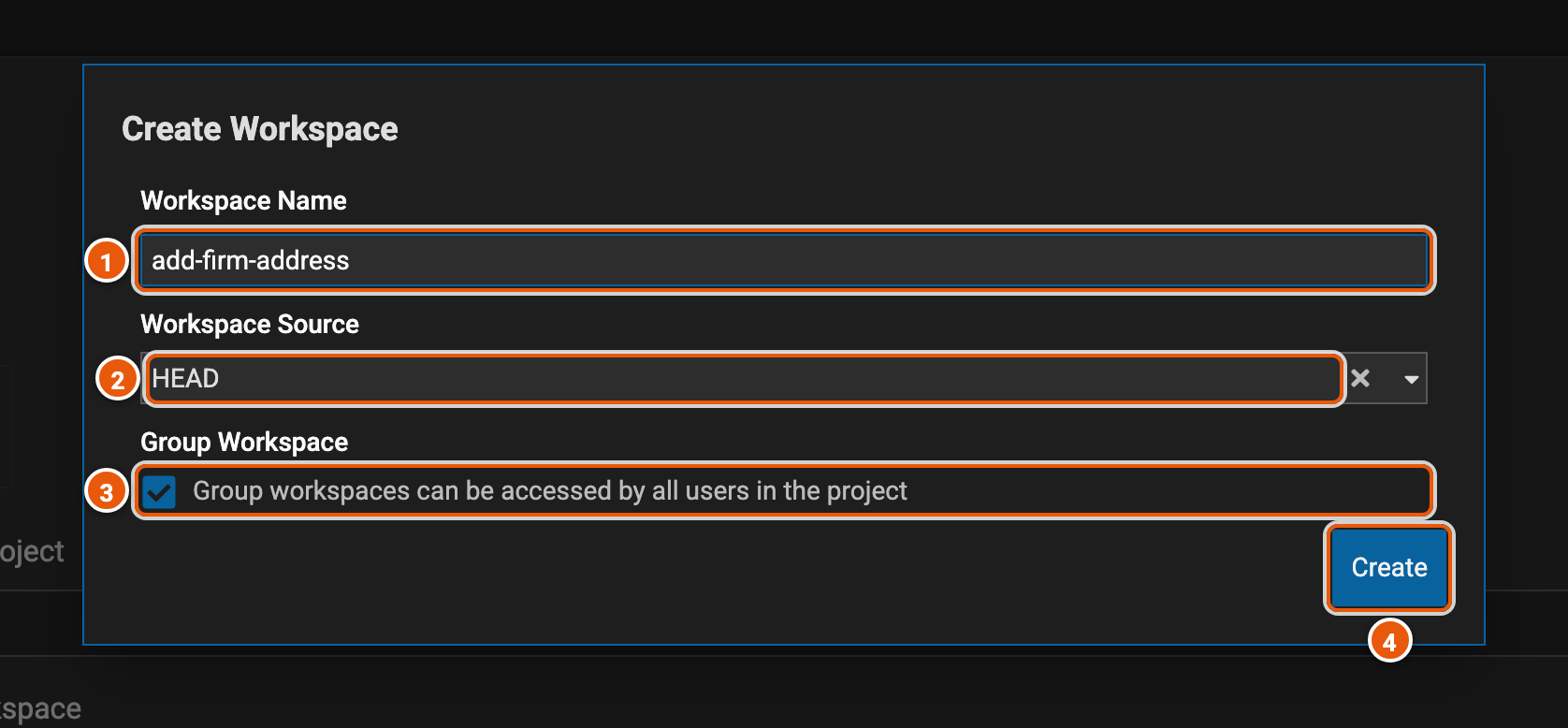
- Workspace Name: a name for your change, such as
add-firm-address. - Workspace Source: where the workspace starts. HEAD is the project as it is now. A
patch/source starts from a released version, to fix that version. - Group Workspace: ticked, the workspace is shared, so everyone in the project can open it and push changes to it. Untick it for a workspace of your own.
- Create: creates the workspace and opens it.