Querying
The query builder runs a query on the model and shows what it returns, to see the data a class holds and check that its mapping fills it as you expect. You build the query by dragging properties, and the query builder writes it in the Legend language for you. The engine runs it on the store, through the mapping.
Open the query builder
Right-click a class in the explorer, then Query.... The query builder opens on the class, with the first mapping that maps it and the first runtime that can run that mapping. A mapping's tests and a service open their queries in the same query builder, with Edit Query.
Build a query
The query below lists the people over 40, with their first and last names and the name of the firm that employs them.
To build it, drag First Name, Last Name and, under Employer, Legal Name to the fetch structure, and
Age to the filter. Pick the operator >, click the value and type 40, then Run Query.
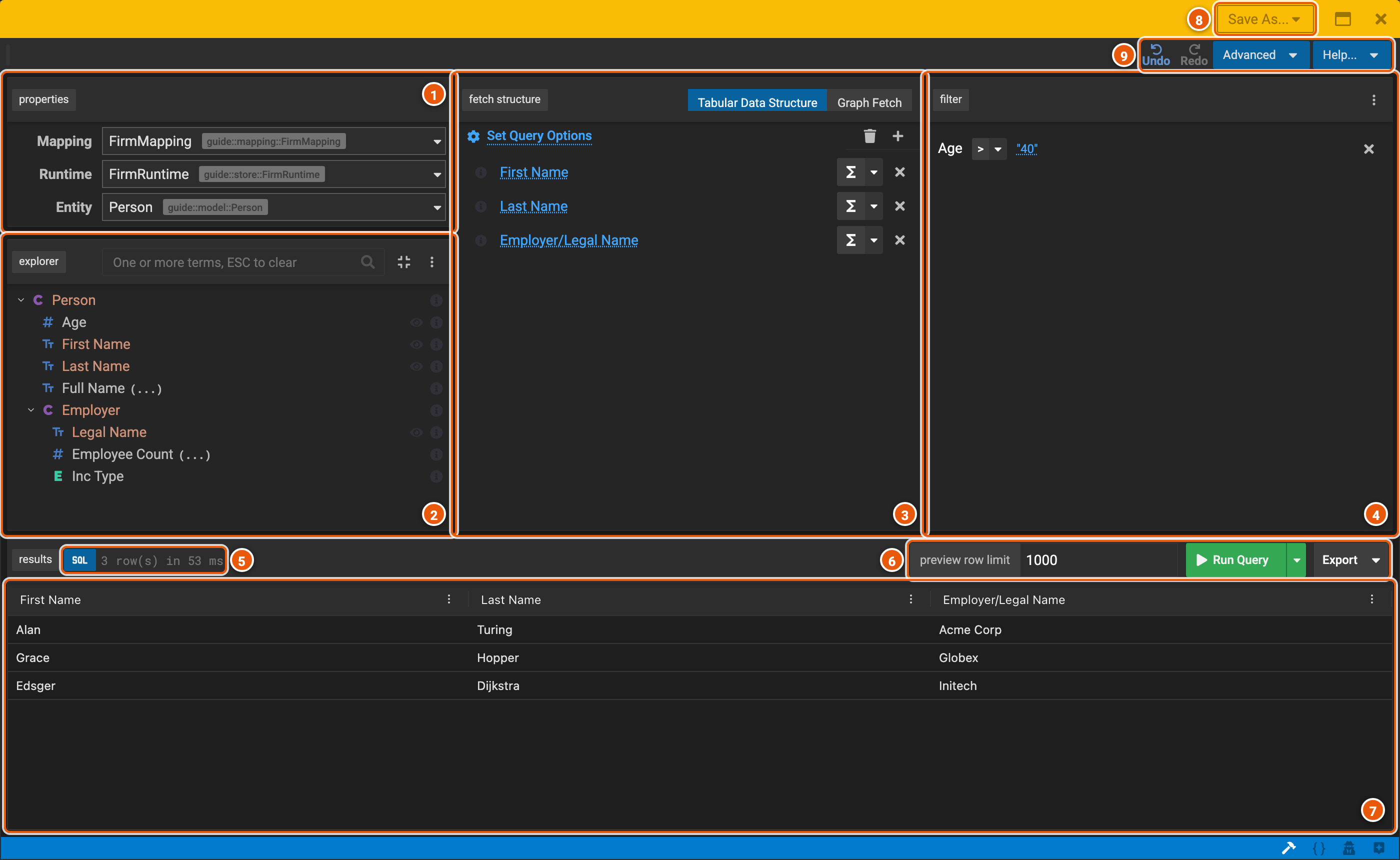
- properties: the Mapping and the Runtime the query runs with, and the Entity, the class it queries. Pick another in its list to change it.
- explorer: the class's properties. A class among them, such as Employer, opens on a click to show its own
properties: here, those of the firm a person works for, through the association.
(...)marks a derived property. Type in the box to find a property. Preview Data, the eye beside a property, describes its values: for a number, its count, sum, smallest, largest and average; otherwise, its ten most common values. - fetch structure: what the query returns. Tabular Data Structure returns rows, with a column for each property dropped here; Graph Fetch returns the instances themselves, as JSON, with the properties you pick. Σ aggregates a column, such as to count or add up its values, grouped by the other columns. Set Query Options sorts the rows, removes duplicate rows and limits how many come back.
- filter: the conditions the data must meet. Drag a property here for a condition, pick its operator, such as
>, and click its value to change it. Several conditions are joined by and: click it to switch to or. - SQL shows the SQL the engine ran (see The SQL), beside how many rows came back and how long the query took.
- Run Query runs the query, for at most preview row limit rows. The arrow beside it has Generate Plan, which shows the plan the engine makes to run the query, and Debug, which shows how it made it. Export saves the results as CSV.
- The results: one row for each person over 40.
- Save As...: saves the query in the workspace, as a function or a service (see Save a query).
- Undo and Redo. Advanced has more a query can do, such as parameters, constants and a filter on its results (Show Post-Filter), and Edit Pure (see below). Help... opens the assistant.
The query in the Legend language
Advanced › Edit Pure shows the query as the query builder wrote it, in the Legend language. You can change it there, then Proceed.
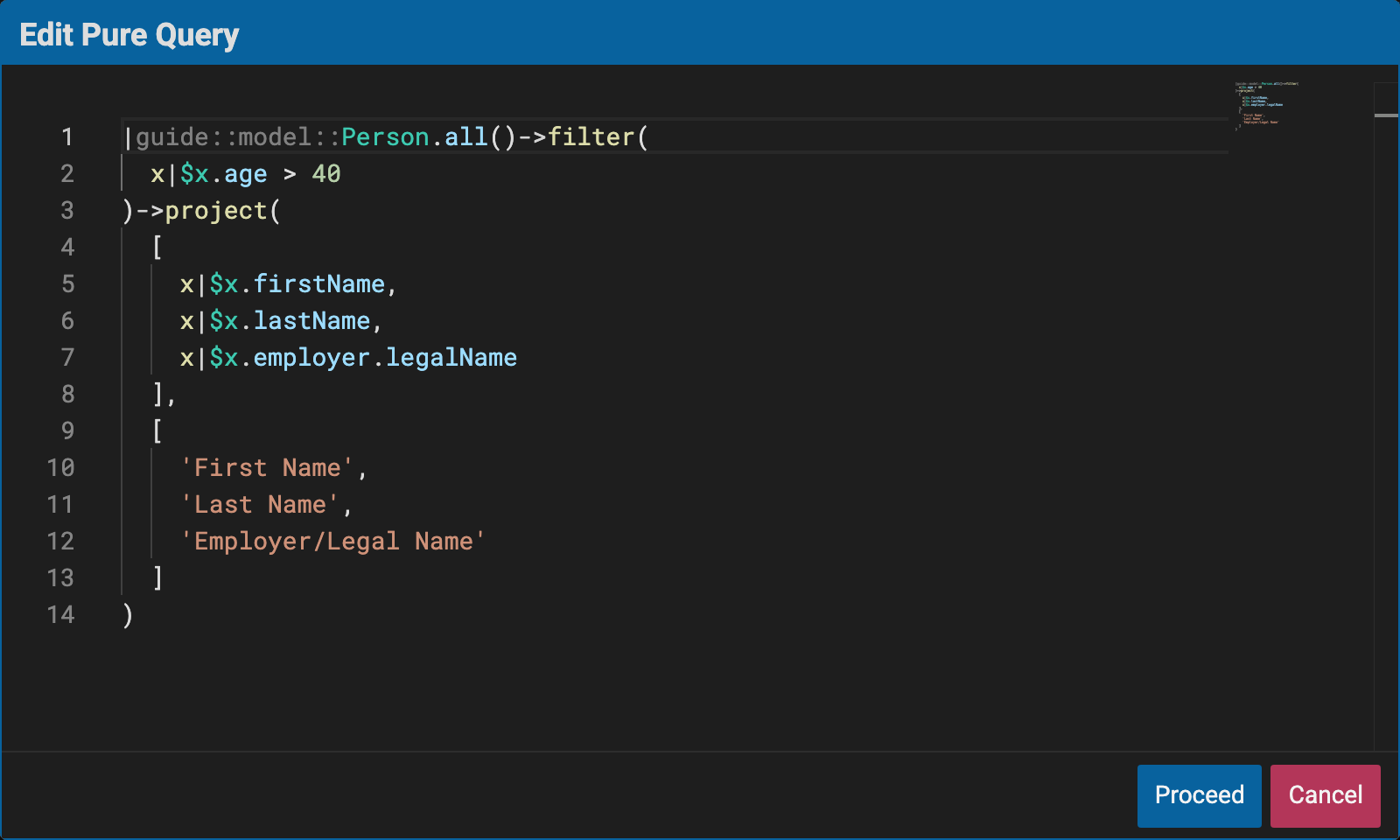
The query is a lambda, a function written in place: its parameters come before the |, and here it has none.
Person.all() takes every person, filter keeps those for whom x|$x.age > 40 is true, x being the person, and
project makes a row of each, with three columns and their names.
The SQL
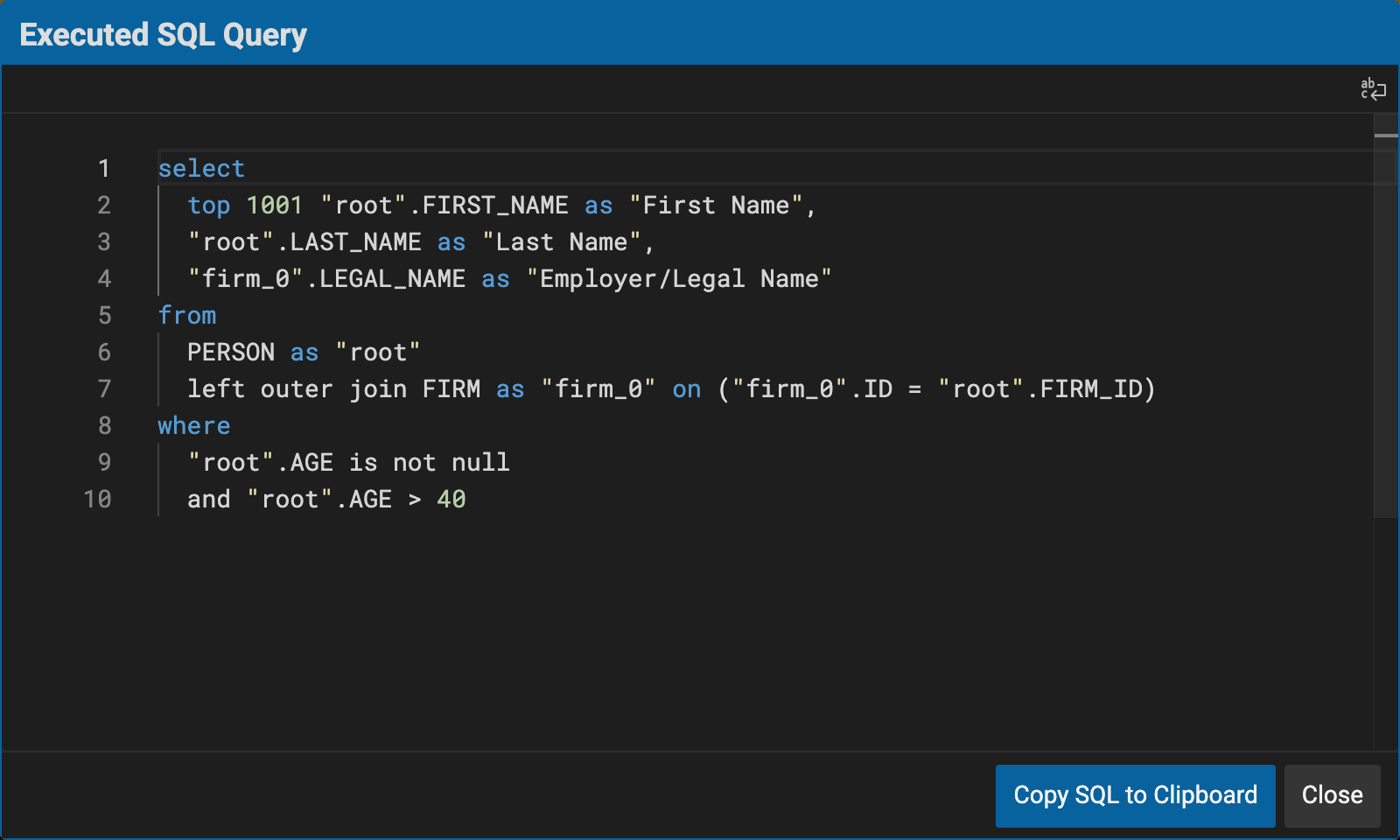
SQL, above the results, shows the SQL the engine ran. The engine made it from the query and the mapping: the join
to FIRM, for the employer's name, is the mapping's join FirmPerson, and top 1001 comes from the preview row
limit.
Save a query
The query builder doesn't keep a query: closing it (×) warns that its changes will be lost. Save As... saves the query in the workspace as a new element, which opens:
- Function: a function that runs the query, with its mapping and its runtime. It's named after the class, as in
Person_QueryFunction, in the class's package. Type another name, or a path such asreporting::olderEmployees, then Create. - Service: a service that runs the query, with its mapping and its runtime. It's named after the
mapping, as in
guide::mapping::FirmMappingService. Type another path, then Create.