Data products
A data product publishes data for people to find in Legend Marketplace and query. Its data is in access point groups, and people request access to a group as a whole. Each access point in a group is a function that returns rows of the data. A model access point group has a mapping instead, so that people query its data through a model's classes. Here, FirmDataProduct publishes the firms and employees of firm-model both ways.
Create one with New Element... › Lakehouse Data Product, under Query, with a name and a title. Modeled starts it with a model access point group rather than an access point group.
Home
The editor opens on Home.
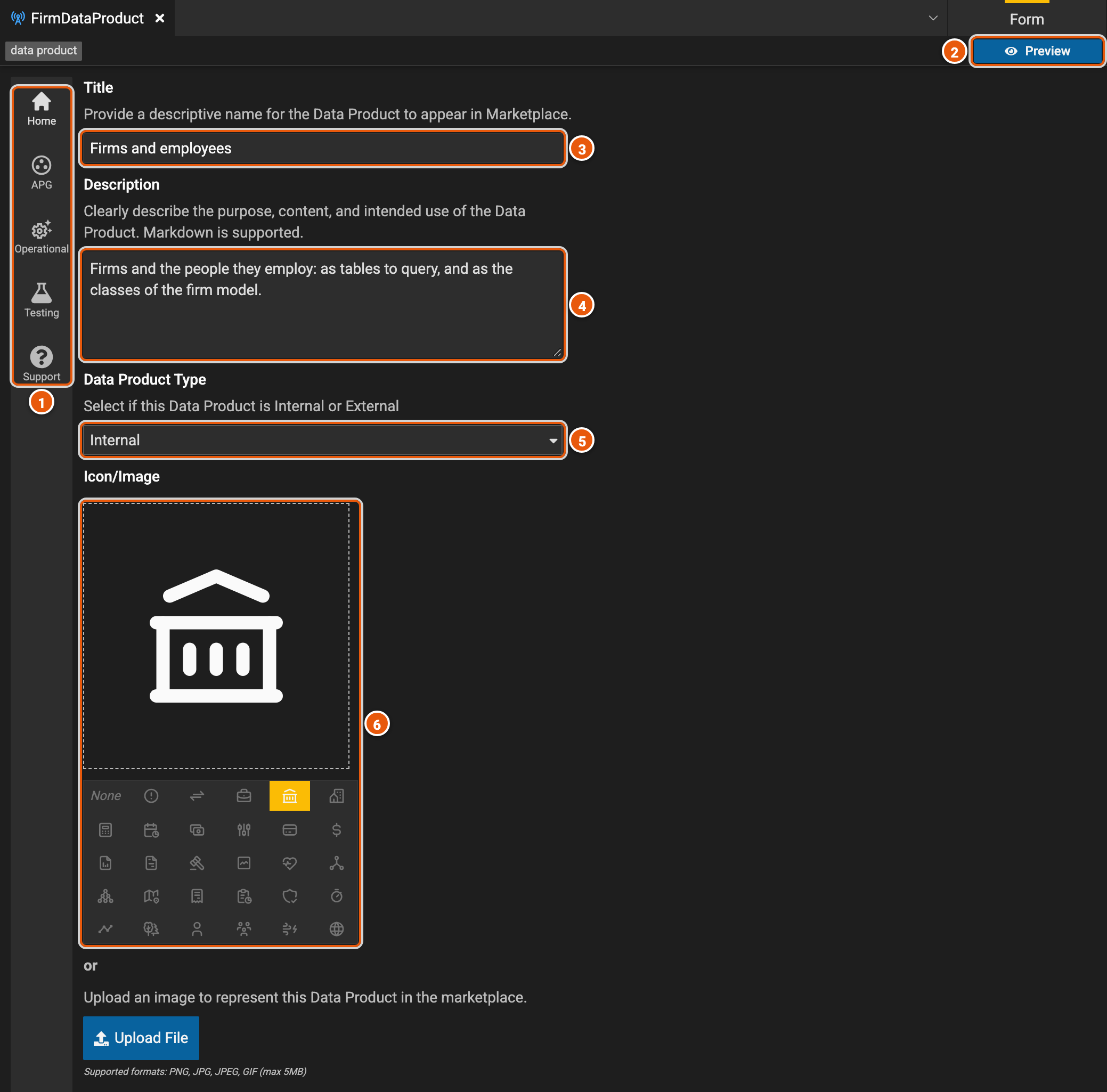
- The editor's pages: Home; APG, the access point groups; Operational; Testing; and Support.
- Preview shows the data product beside the form, as people see it in Legend Marketplace.
- Title: the data product's name in Legend Marketplace.
- Description: what the data product is for, what it holds and how to use it. It can use Markdown.
- Data Product Type: Internal, or External, which adds a link: a URL and its label.
- Icon/Image: the icon Legend Marketplace shows for the data product. Upload File, below, takes an image instead.
Below them, Ownership takes the IDs of the deployments that own the data product.
Access point groups
APG shows the access point groups, one at a time.
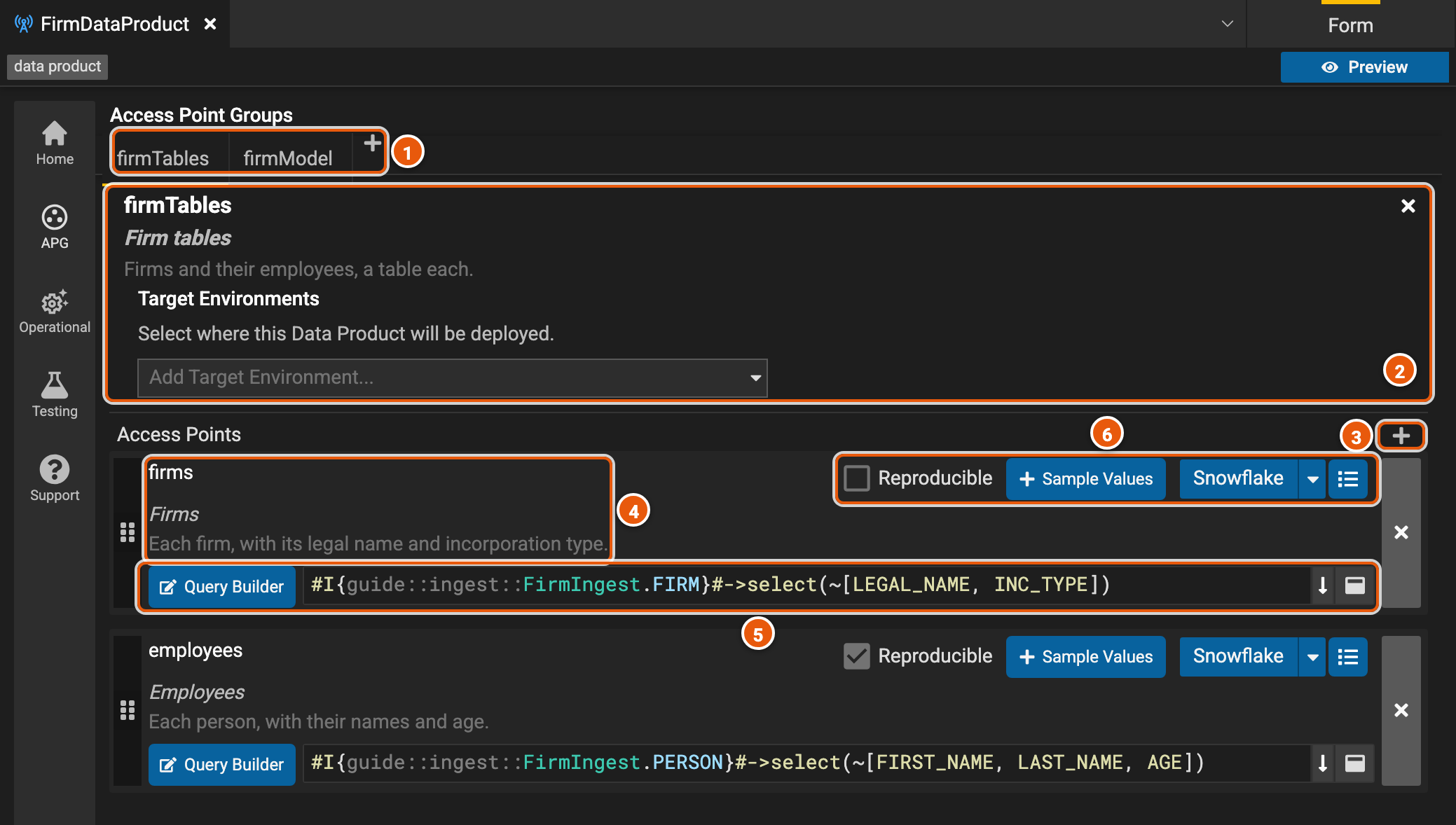
- The groups, one tab each. + adds a New Access Point Group or a New Model Access Point Group. A red mark on a tab means the group lacks a name, a title, a description or an access point, or one of its access points lacks a name, a title or a description.
- The group: its name, its title, and its description, which people read when they request access to it. Click one to change it; × removes the group. Target Environments: where its access points are deployed. Adding one clears each access point's own environment (6), and setting an access point's environment clears the group's.
- + adds an access point.
- The access point: its name, its title and its description. Click one to change it. The handle at its left drags it, to reorder it or onto another group's tab, and ×, at its right, removes it.
- Its function, in the Legend language, which returns the access point's rows. Here, it reads the FIRM data set of the project's ingest definition, FirmIngest, and keeps two of its columns. Query Builder opens it in the query builder, on the project's ingest definition, and Save Lambda puts it back. The buttons at its right expand the text and open it in a larger editor.
- Reproducible lets people get the data as it was at any Lakehouse batch. Sample Values adds example rows of what the access point returns (see Sample values). The arrow beside its environment, here Snowflake, picks where the access point is deployed: Snowflake, Databricks, BigQuery or DuckDb. The last button has AP Plan Generation, the plan the engine makes to run the access point, and Lineage Viewer, where its columns' data comes from.
When Legend Studio is set up for them, an access point also has a data classification, and a group a switch that makes its data enterprise data, which anyone in the organization can access without approval.
A model access point group has a Mapping instead of access points: people query its data through the model's classes, with that mapping. The arrow beside it opens the mapping. Here, firmModel uses FirmMapping.
Sample values
Sample values are a few example rows of what an access point returns. Legend Marketplace shows them beside each of the access point's columns, under Column Sample Values. They're saved in the project, with the data product.
To add them, click Sample Values beside the access point. Legend Studio first asks the engine for the columns the access point's function returns, so the function must compile and return rows; if it doesn't, Legend Studio says to fix the function and adds nothing. The editor then opens with an empty row, under those columns. Here, Firms returns LEGAL_NAME and INC_TYPE.
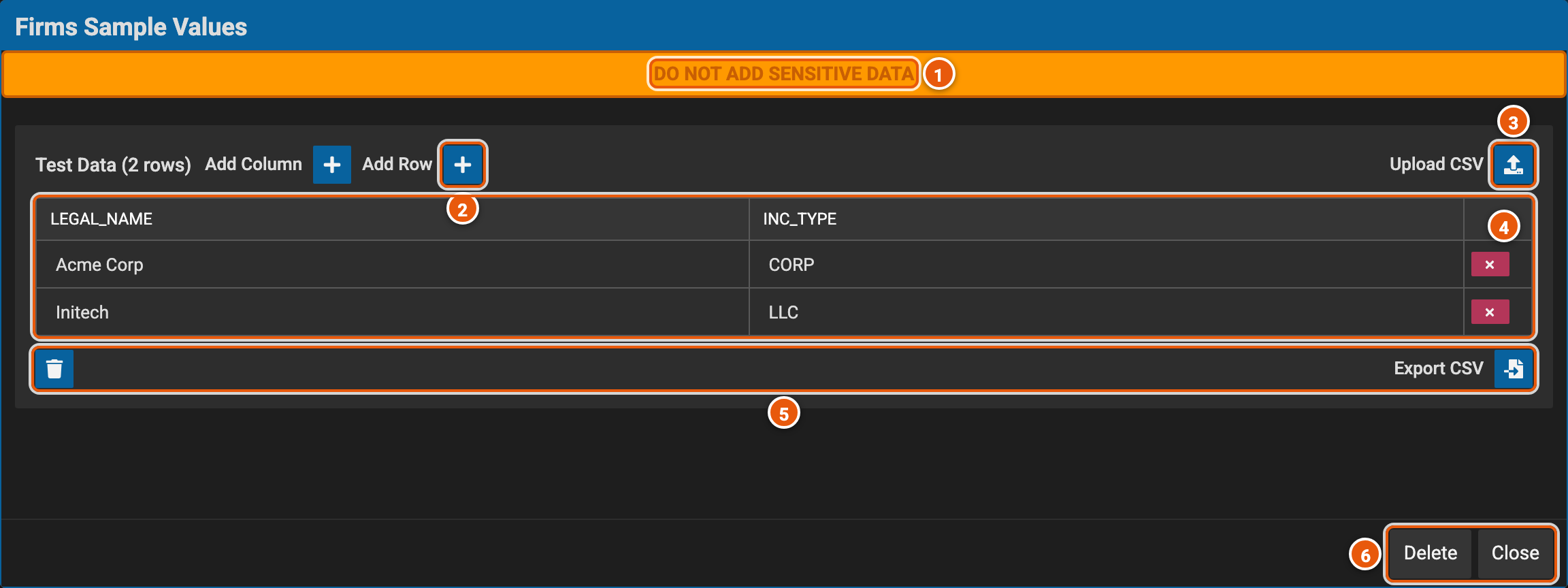
- Do not add sensitive data: the values are saved in the project and shown in Legend Marketplace.
- Add Row adds an empty row. Type each value in its cell. Add Column, beside it, adds a column, but the columns should stay the function's (see below).
- Upload CSV replaces the table with a CSV file's rows. The file's first line names the columns.
- The table: a column for each column the function returns, and a row for each example. × removes a row.
- Export CSV saves the table as a CSV file, and the bin, after asking, removes every row.
- Delete removes the access point's sample values, after asking. Close closes the editor and keeps them.
The button then shows a pencil, and opens them again. It has a red border while their columns differ from those the function returns, such as after the function changes.
Operational metadata
Operational describes the data: the regions it covers, Coverage Regions (APAC, EMEA, LAMR and NAMR), and how often it is updated, Update Frequency, from INTRADAY to YEARLY, or ON_DEMAND.
Accessibility Jurisdictions limits where the data product may be made accessible. Add US, CHINA, or both; each can appear once. Leave it empty for no restriction.
Tests
Testing holds test suites, which check what access points return. A suite gives rows of test data for the data sets the access points read, and each test gives the rows its access point should return. Add Test Suite asks for the name of the suite's first test and the access point it tests.
Support
Support says where people can find help.
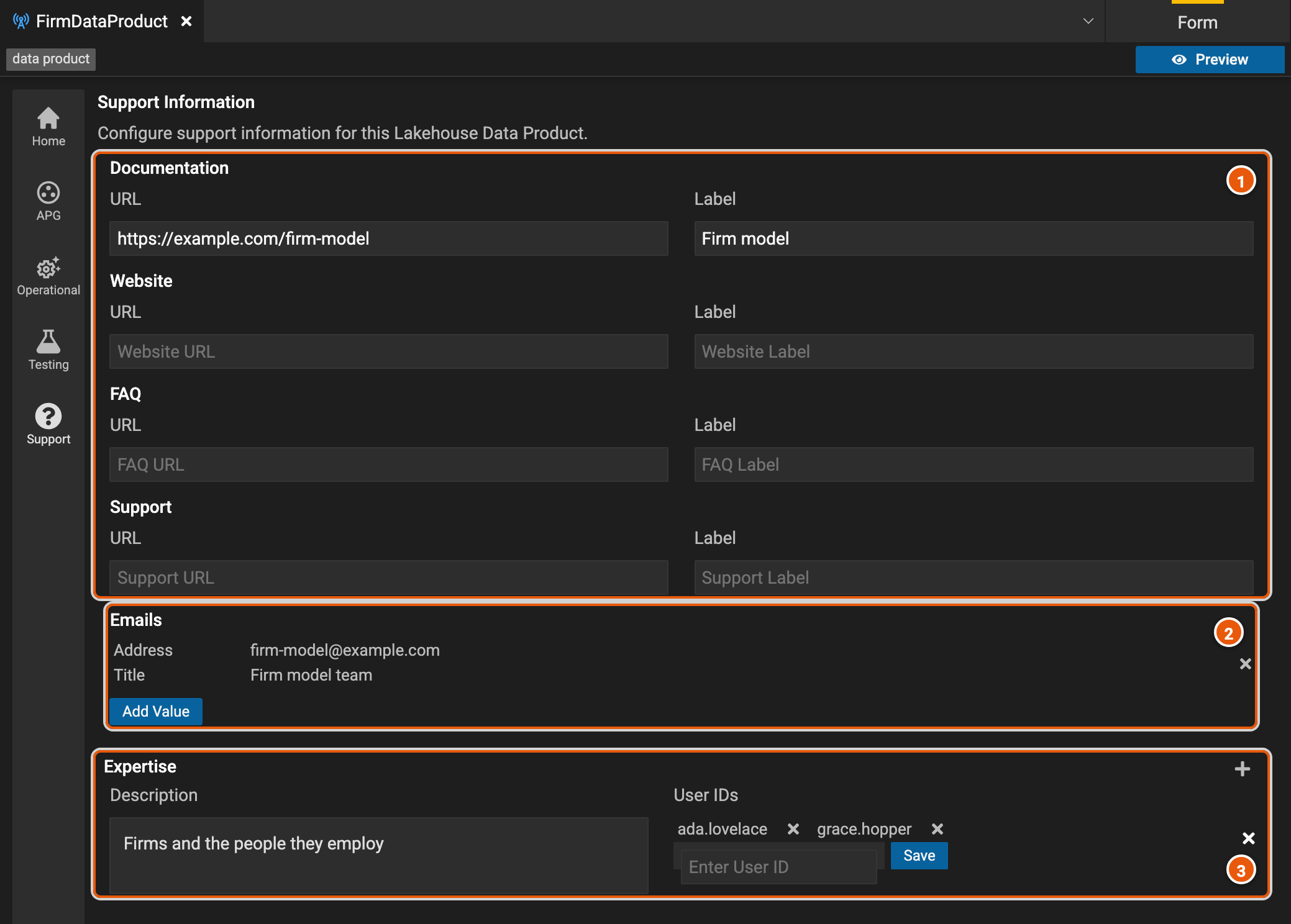
- Links: Documentation, Website, FAQ and Support, each a URL, and a label to show for it once it has one.
- Emails: who to write to, each an address and a title. Add Value adds one, and × removes it.
- Expertise: people who know the data, by user ID, with a description. + adds another such group.