The editor
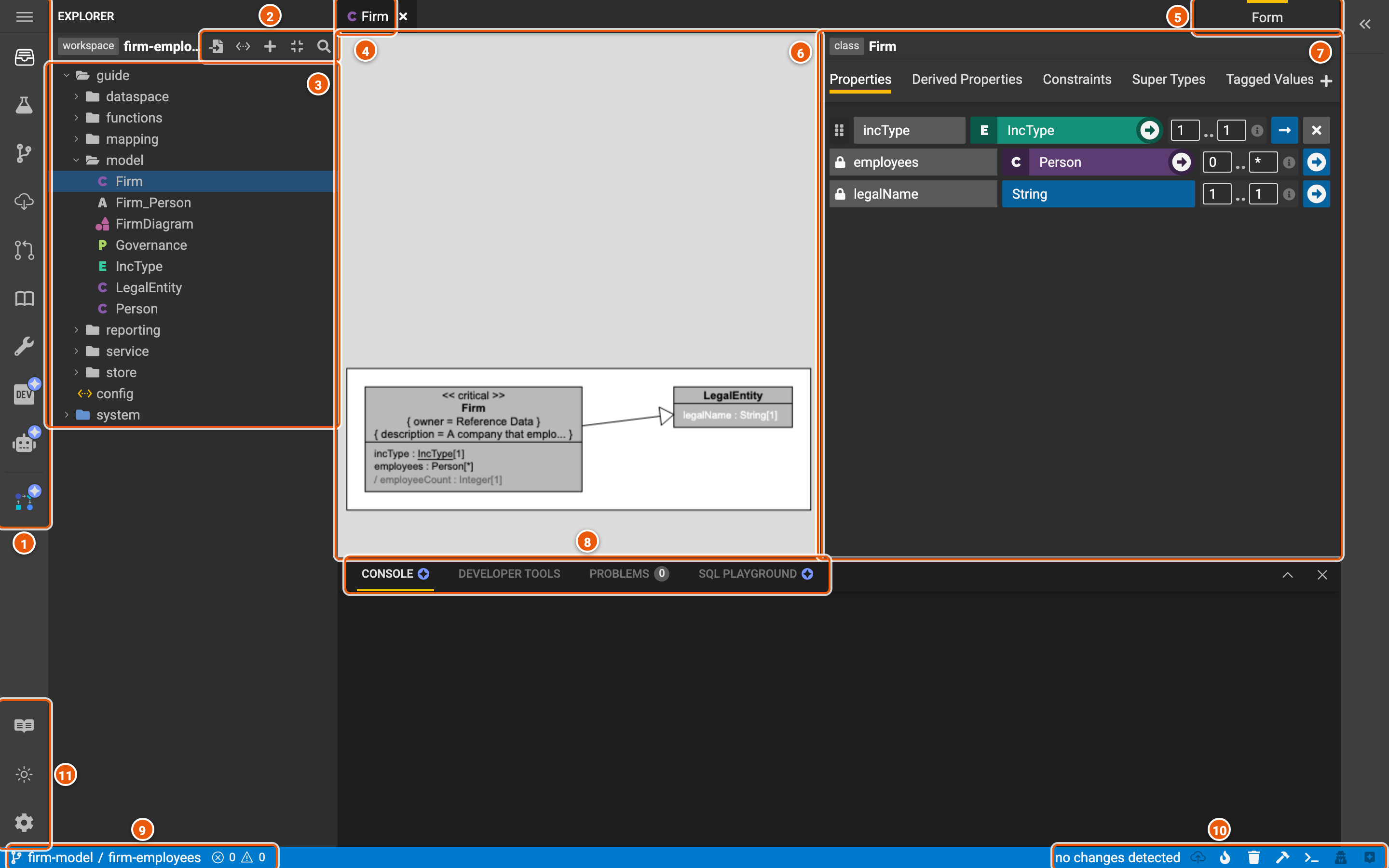
The editor opens a workspace: the project's elements on the left, the elements you open in the middle, and the workspace's state along the bottom. Below, the workspace firm-employees has the class Firm open.
Click the image to see it full size.
- The menu and the activity bar. The menu, ☰, has About, See Showcases, Documentation, Help...
and Back to workspace setup, which returns to the start screen. The activity bar under it switches the left
side panel between:
- Explorer (Ctrl+Shift+X): the workspace's elements.
- Test Runner: runs the project's tests.
- Local Changes (Ctrl+Shift+G): what you've changed and not yet pushed to the workspace.
- Update Workspace (Ctrl+Shift+U): brings in what others have committed to the project since your workspace started.
- Review (Ctrl+Shift+M): asks for the workspace's changes to be reviewed and committed to the project.
- Project: the project's overview, its workspaces, its versions and patches, and releasing a new version.
- Workflow Manager: the project's build pipelines.
- Dev Mode, Register Service and End to End Workflows, which are in beta.
- The explorer's actions:
- Open Model Importer (F2): adds elements to the workspace from Legend language text or JSON.
- Project Configuration Panel: the project's configuration, such as the projects it depends on.
- New Element... (Ctrl+Shift+N): creates an element, such as a class or a mapping.
- Collapse All folds the tree.
- Open Element... (Ctrl+P): finds an element by name.
- The explorer: the workspace's elements, by package. A letter or an icon shows each element's kind, such as C for a class, A an association, E an enumeration and P a profile. Click an element to open it, and right-click it for more. config opens the project configuration, and system holds what Legend itself provides, such as its built-in profiles; you can't change it.
- Tabs: the elements you've opened. The arrow at the end of the tabs lists them all.
- Form: how the open element shows. Form is its editor, Grammar its Legend language text and JSON the JSON the project stores. The list also has what Legend can generate from it, such as a JSON schema.
- The class's preview: the class as a diagram draws it, with the class it extends.
- The class's editor: one tab each for its Properties, Derived Properties, Constraints, Super Types, Tagged Values and Stereotypes. Every kind of element has an editor of its own.
- The panel (Ctrl+`): Console shows messages from compiling and generating, Problems lists the errors and warnings, Developer Tools has settings for how Legend Studio calls the engine, such as its URL, and SQL Playground runs SQL against a connection of the project.
- The project and the workspace you're in, and how many errors and warnings the workspace has.
- The workspace's state and actions:
- no changes detected, or how many changes you haven't pushed yet. Push local changes (Ctrl+S) saves them to the workspace.
- Generate (F10) runs the project's generations, and Clear generation entities removes what they made.
- Compile (F9) checks the whole workspace.
- Toggle panel (Ctrl+`) shows or hides the panel.
- Toggle text mode (F8): see Text mode.
- Toggle assistant shows or hides the assistant, which searches Legend's documentation and shows help for the screen you're on.
- Open Showcases (F7), the light or dark theme, and Settings.
Text mode
Text mode shows the whole workspace as Legend language text, in one editor. Press F8, or Toggle text mode in the status bar.
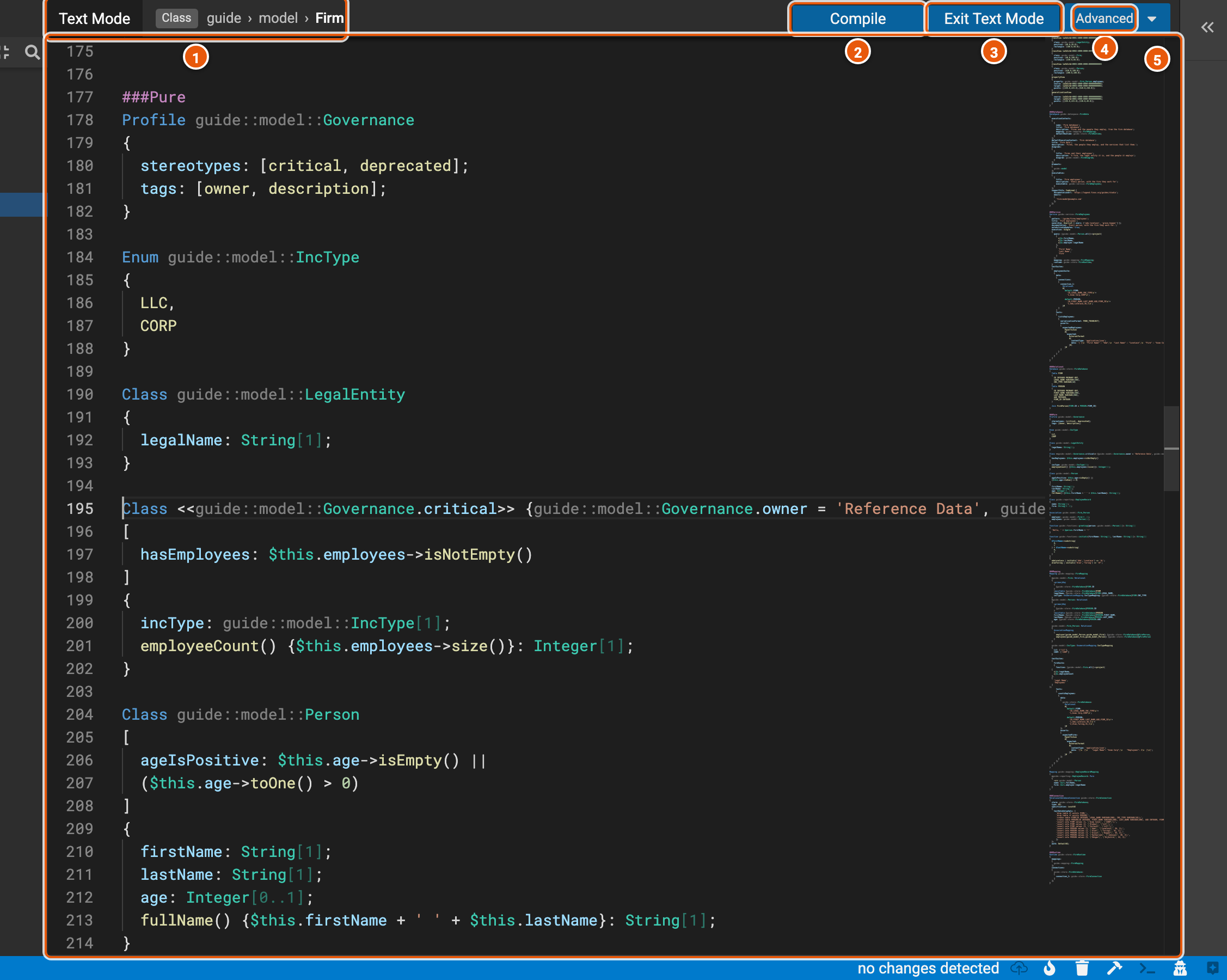
- Text Mode, and the element the cursor is in: its kind and its path.
- Compile (F9): checks the text, and lists any problems in the panel.
- Exit Text Mode: back to the form editors. The text must compile first.
- Advanced: Wrap Overflowing Words and Auto Fold Elements.
- The text: every element of the workspace, under a header for its kind, such as
###Purefor classes or###Relationalfor databases.