The query editor
The query editor is where you build a query and run it. You drag properties from the explorer: to Columns for what the query returns, and to Filter for the conditions the data must meet. Legend Query writes the query in the Legend language for you, and the engine runs it on the data's store, through the context's mapping.
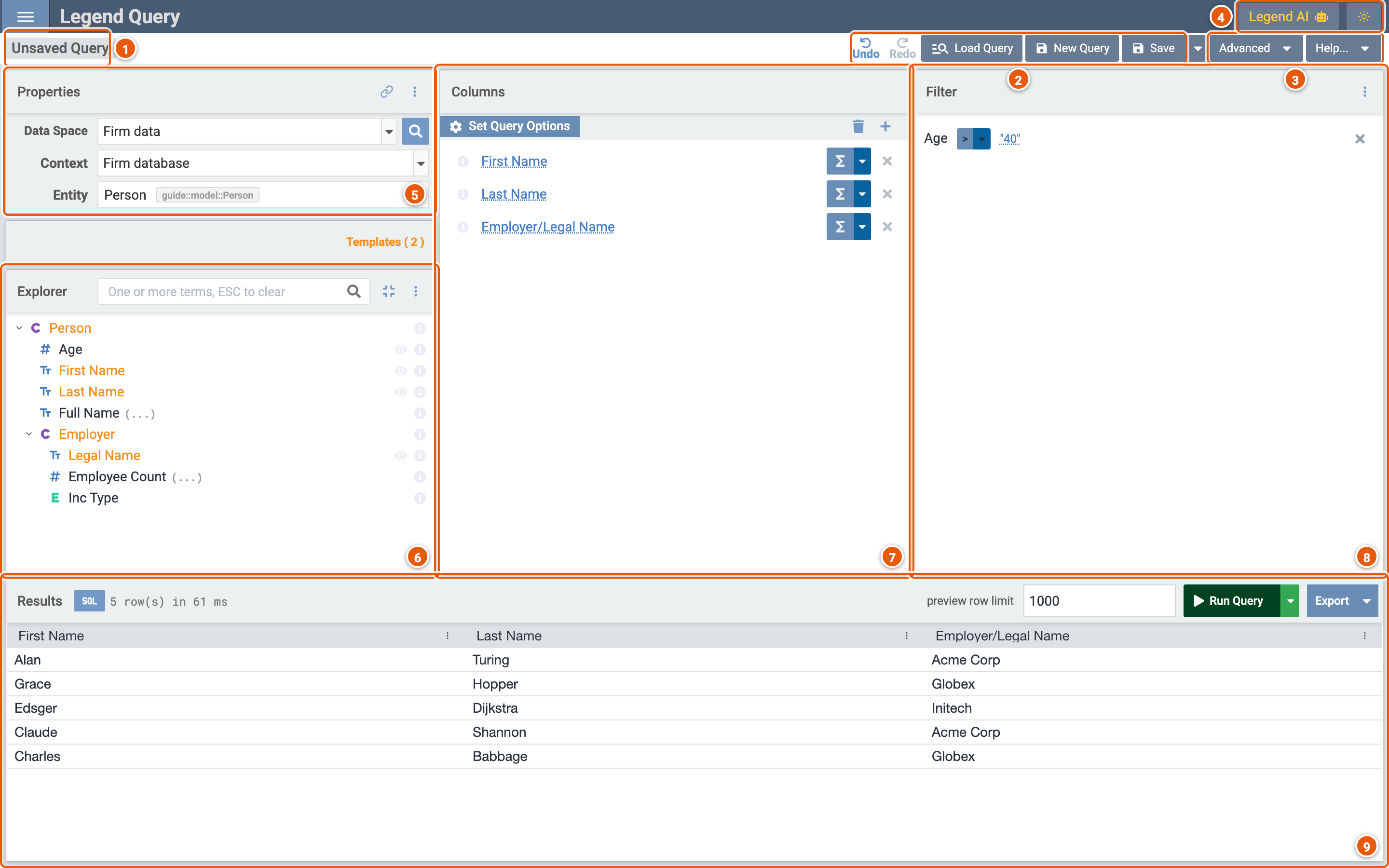
Click the image to see it full size.
- The query's name: Unsaved Query until you save it (see Saving and sharing).
- Undo and Redo. Load Query opens a saved query, and New Query starts an empty one on the same data space. Save saves the query; the arrow beside it has Save As New Query (see Saving and sharing).
- Advanced: more a query can do, such as parameters and constants (see Parameters and constants), a post-filter (see Post-filter) and window functions. Show Pure shows the query in the Legend language, and Edit Pure edits it there. Check Entitlements checks that you can access the data the query reads. Help... has About Data Space (see Data spaces), About Legend Query, Open Documentation and Show Virtual Assistant.
- Legend AI opens a panel for an AI assistant, where your deployment of Legend adds one. The sun switches Legend Query between its light and dark themes.
- Properties: the data space, context and entity the query runs on (see Data spaces).
- Explorer: the entity's properties. A class among them, such as Employer, opens on a click to show its own
properties: here, those of the firm a person works for.
(...)marks a derived property, which the model computes. Type in the box to find a property. Preview Data, the eye beside a property, describes its values: for a number, its count, sum, smallest, largest and average; otherwise, its ten most common values. - Columns: what the query returns, a column for each property dropped here. Click a column's name to rename it. Σ aggregates a column, such as to count or add up its values, grouped by the other columns (see Post-filter). Set Query Options sorts the rows, removes duplicate rows and limits how many come back.
- Filter: the conditions the data must meet. Drag a property here for a condition, pick its operator, such as
>, and click its value to change it. Several conditions are joined by and: click it to switch to or. The panel's menu groups conditions. - Results: what the query returned (see Results).
Build a query
The query above lists the people over 40, with their names and the firm that employs them:
- In Properties, pick the data space Firm data and the entity Person.
- Drag First Name and Last Name to Columns. Click Employer, and drag its Legal Name there too.
- Drag Age to Filter. Pick the operator
>, type40and press Enter. - Click Run Query.
Results
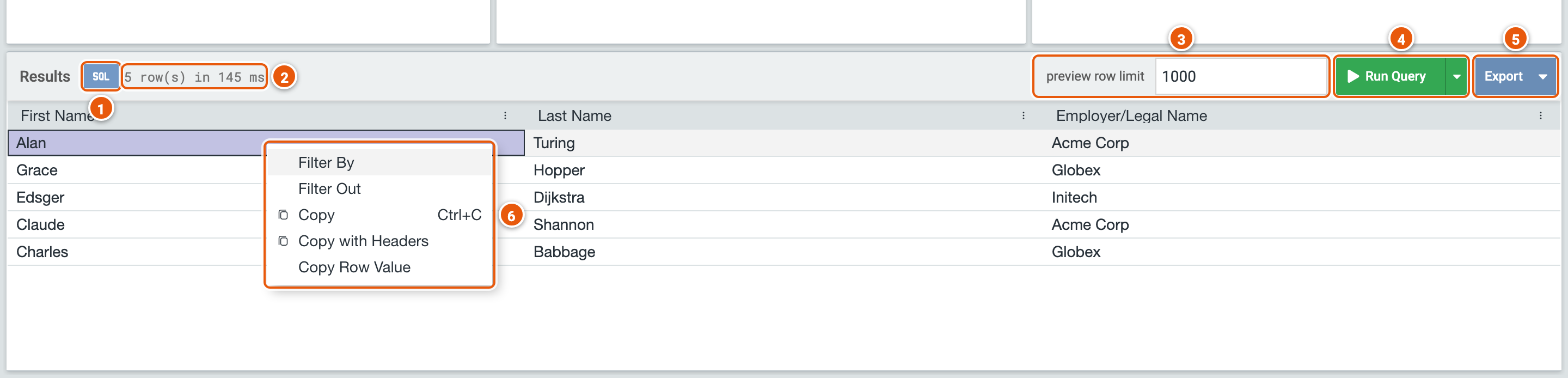
- SQL: the SQL the engine ran, which it made from the query and the mapping. Copy SQL to Clipboard copies it.
- How many rows came back, and how long the query took.
- preview row limit: the most rows the query returns here. Exports aren't limited.
- Run Query runs the query. The arrow beside it has Generate Plan, the plan the engine makes to run the query; Debug, how it made the plan; and View Lineage, where the query's data comes from.
- Export: saves the results in a file, such as CSV. The rest of the menu is for saved queries: Legend DataCube opens the query in Legend DataCube; Curated Template Query and Productionized Query take it to Legend Studio, to make it a template of the data space or a service; DEV Service registers it as a service for development.
- Right-click a cell: Filter By and Filter Out add a condition that keeps, or leaves out, the rows with the cell's value. Copy copies the cell, Copy with Headers copies it with its column's name, and Copy Row Value copies the whole row.
Post-filter
A post-filter applies to the query's results, such as to a count, where a filter applies to the data before the query counts it. Advanced › Show Post-Filter shows it.
Below, the data space's template Headcount by firm (see Templates) counts the people each firm employs, and a post-filter keeps the firms with more than 2.
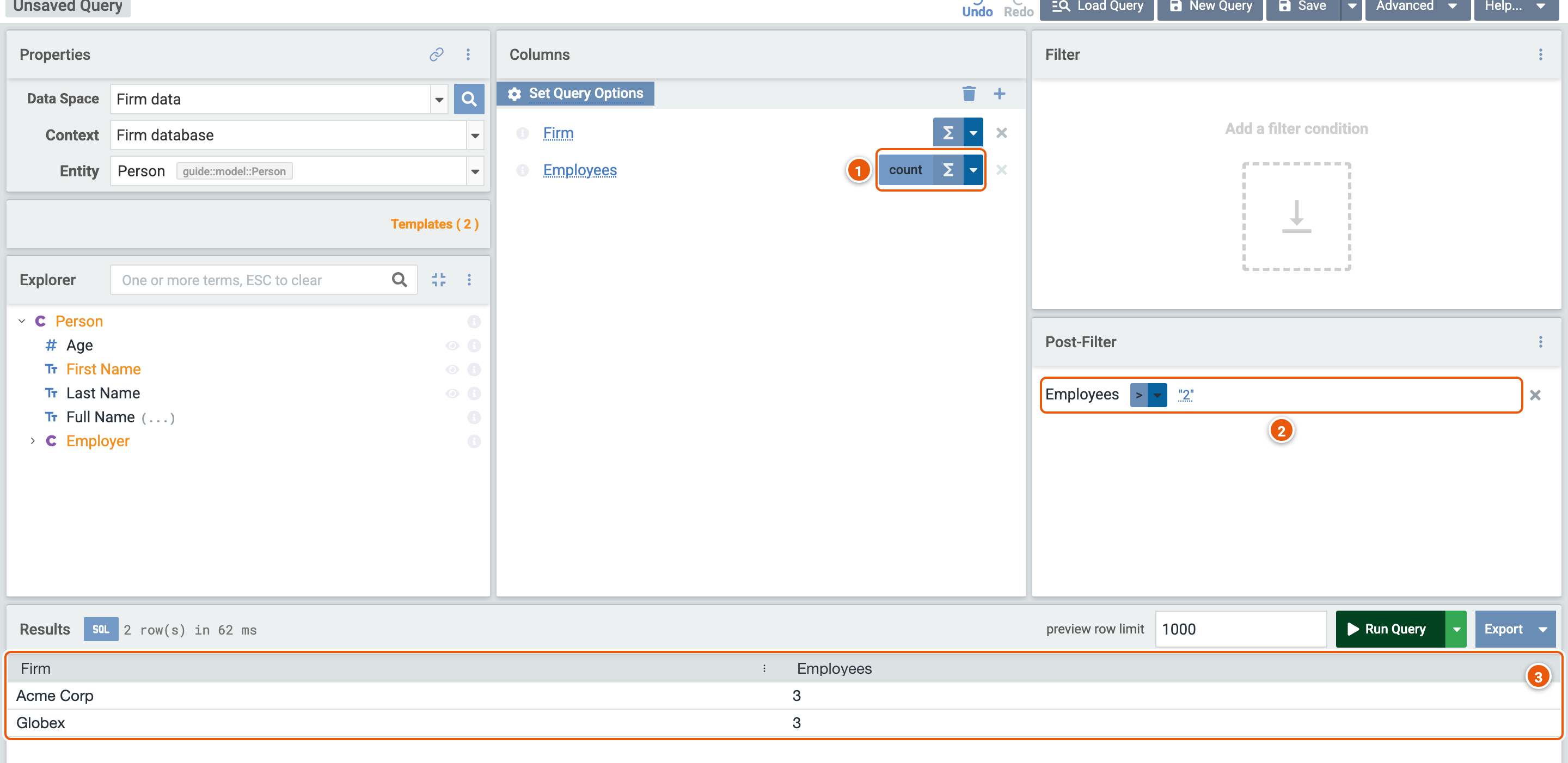
- count: the column's aggregation, picked with Σ and its arrow, among others such as sum, average, smallest, largest and distinct count. The other columns, here Firm, group the rows.
- Post-Filter: drag a column from Columns here for a condition on it. Filter By and Filter Out, on such a column's cell, add their condition here.
- The results: the firms with more than 2 people.
Parameters and constants
A parameter is a value the query asks for each time it runs, such as the age in its filter. A constant is a value named once, which stays the same at every run. Advanced › Show Parameter(s) and Show Constant(s) show them.
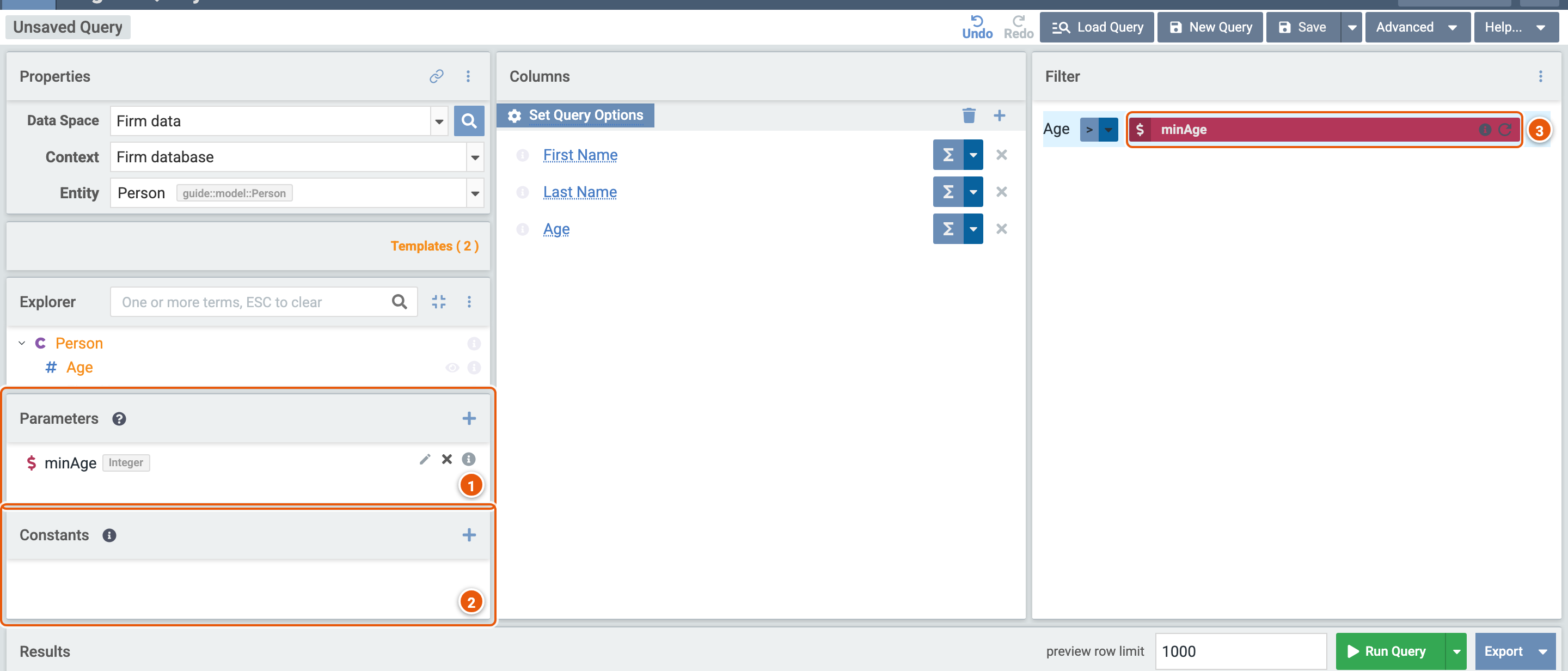
- Parameters: + adds one, with its name and type, such as minAge, an Integer. Drag it onto a condition's value to use it there.
- Constants: + adds one, with its name, type and value.
- A parameter in use: minAge is the value the condition on Age compares with.
Run Query then asks for the parameter's value.
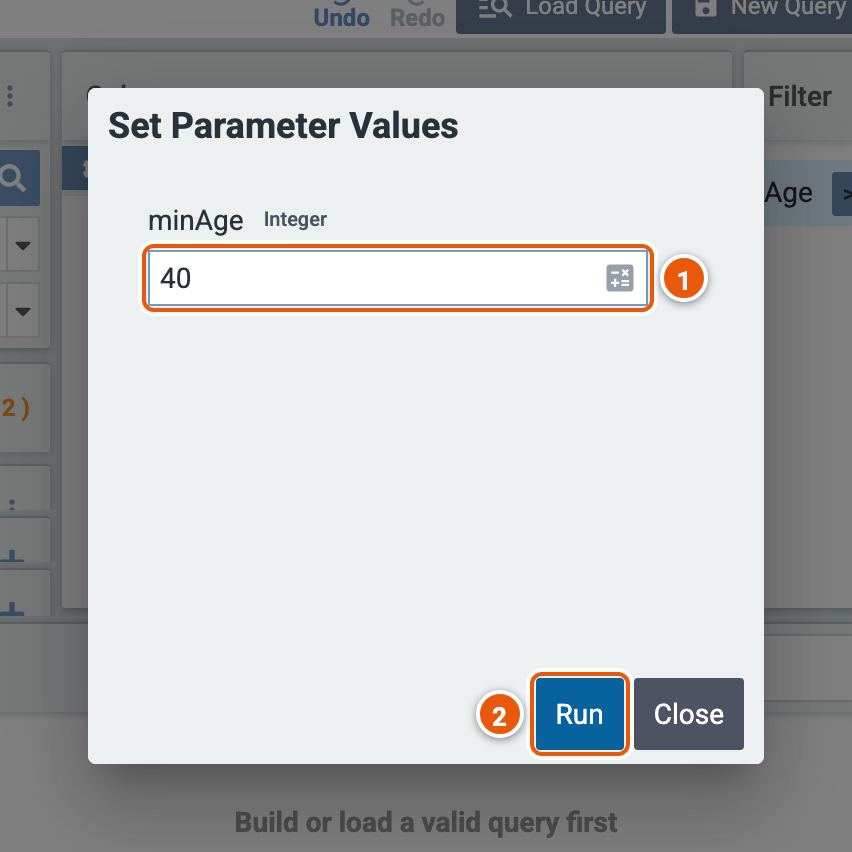
- The parameter's value, here
40. - Run: runs the query with it.